Skip to content
CVChoicerVoicer.gamesPlay the voice game
PlayMultiplayer
Upload video
PricingDub Packs
Play Dub
Play
PlayMultiplayer
Create
Upload video
PricingDub Packs

CV.gamesChoicerVoicer.games

Play ready-made Dub Packs or turn your own eligible MP4 into a dubbing project, then record, preview, and download the finished video.

Email supportsupport@choicervoicer.games

Links
Home·Is It Free?·How to Play·Dub Packs·Pricing·Voice Over Game·The Choicest Voice·Movie Voice Over Game·Juego de Doblaje (Español)·The Choicer Voicer (Русский)·Multiplayer Guide·Mobile Play Guide·Download Guide·itch.io Listing Guide·About·Privacy·Terms·Copyright·Contact

© 2026 ChoicerVoicer.games

IndieDB

Creator / Upload MP4

Turn Your MP4 Into a Video Dubbing Game

Build a reusable video dubbing game from your own scene. Check who says each line, perform every voice, and download the finished dub without editing dialogue clips by hand.

  • Use your own MP4
  • Review every speaker
  • Record line by line
  • Re-record without another project charge
  • Download without a watermark

Turn Your MP4 Into a Recordable Dub

Upload an authorized MP4, check the detected cast and lines, then record your version in the browser.

  1. 1Upload video
  2. 2Process video
  3. 3Choose characters
  4. 4Record & download

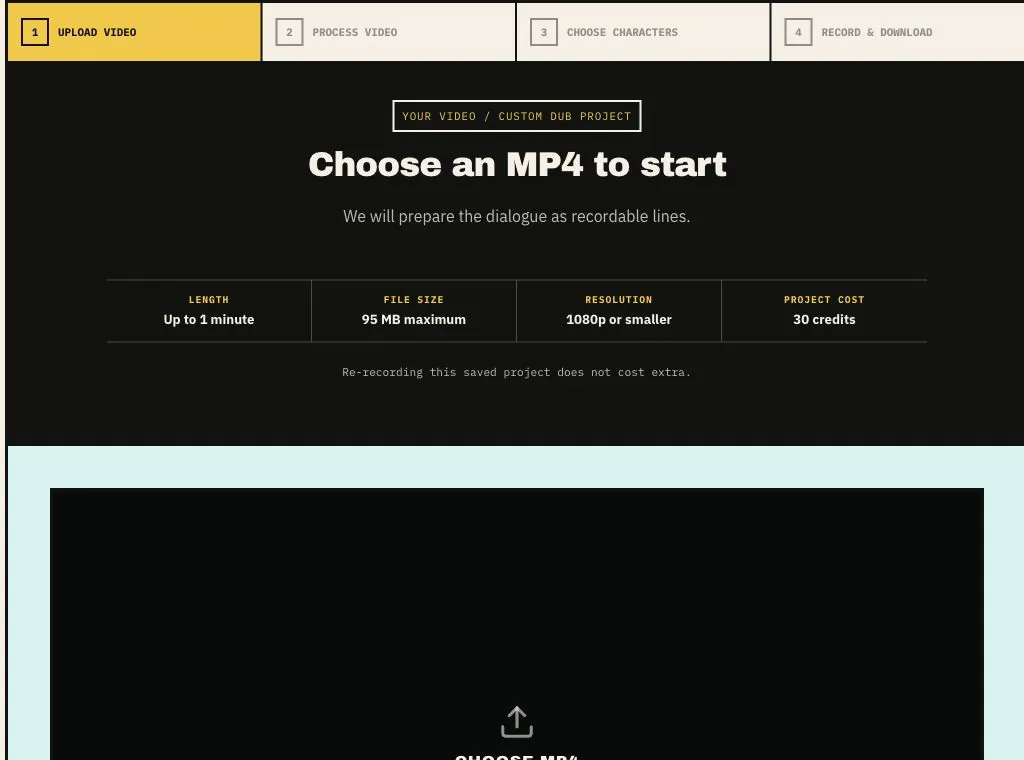
YOUR VIDEO / CUSTOM DUB PROJECT

Choose an MP4 to start

We will prepare the dialogue as recordable lines.

Length
Up to 1 minute
File size
95 MB maximum
Resolution
1080p or smaller
Project cost
30 credits

Re-recording this saved project does not cost extra.

Choose an MP4 to preview it and calculate the project cost.

Opening your saved dub project…

READY PROJECT loading video and recorded lines

OPENING YOUR DUB PROJECTYou will go directly to line recording.

Native Dub Stage

Community packs · free to play · no account

QUICK PREVIEW record, review, and download your finished dub

Choicer Voicer browser dubbing stage
Browser dubbing game

Choicer Voicer

Microphone access is requested only after you press Record.

Record each line, review your result, and download the finished MP4. When you are signed in, the completed video saves to your account. Public sharing happens only when you choose a share action. Included packs retain their creator credits; verify media rights before publishing them.

Video dubbing game walkthrough

How to Create a Video Dubbing Game From an MP4

This video dubbing game walkthrough follows the same four stages shown in the tool. Each stage saves a useful part of the project, so the video dubbing game moves from one uploaded scene to a reusable recording experience.

  1. Upload screen used to start a custom video dubbing game
    01Upload the scene

    Start your video dubbing game with one MP4

    Choose an MP4 that you own or have permission to edit. Preview the file before you confirm the project, then check the displayed credit cost. A video dubbing game starts only after you choose the file and approve the preparation charge.

    Keep this page open while the bytes are uploading. As soon as the upload finishes, the video dubbing game becomes a saved project and moves into processing. From that point, refreshing the page or returning later will not make you upload the same file again.

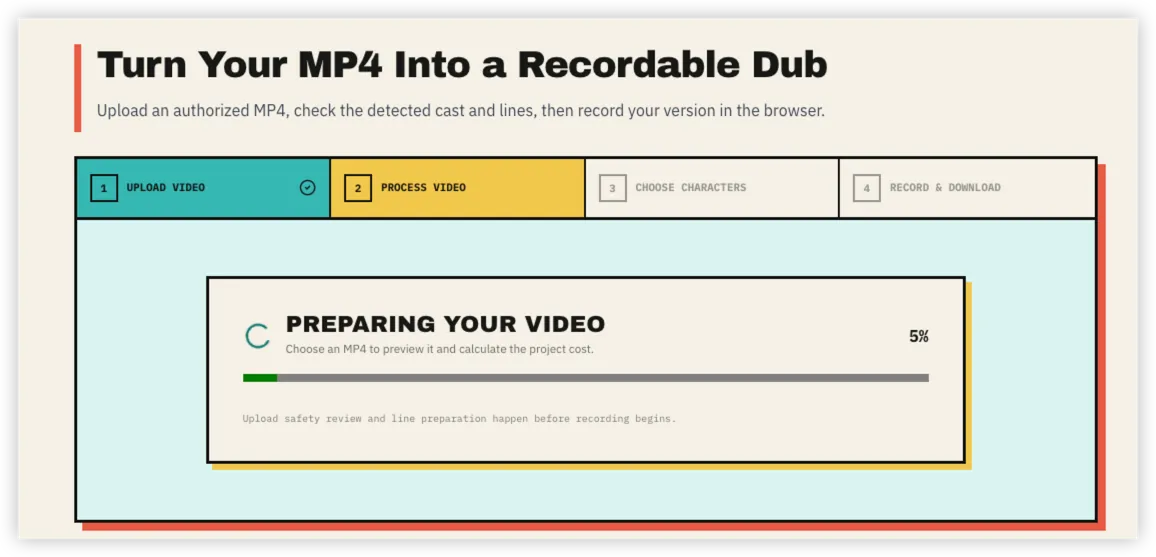
  2. Processing screen while a video dubbing game prepares dialogue
    02Prepare the dialogue

    Let the video dubbing game build the lines

    The processing screen shows that the upload is safely stored and the dialogue is being prepared. Your video dubbing game is divided into short lines so each sentence can be heard, recorded, reviewed, and replaced without repeating the complete scene.

    You do not need to restart this work if you leave. Open Dub Projects to see the current status, then return when the video dubbing game is ready for character review. A finished processing step should load the saved result instead of analyzing the same video a second time.

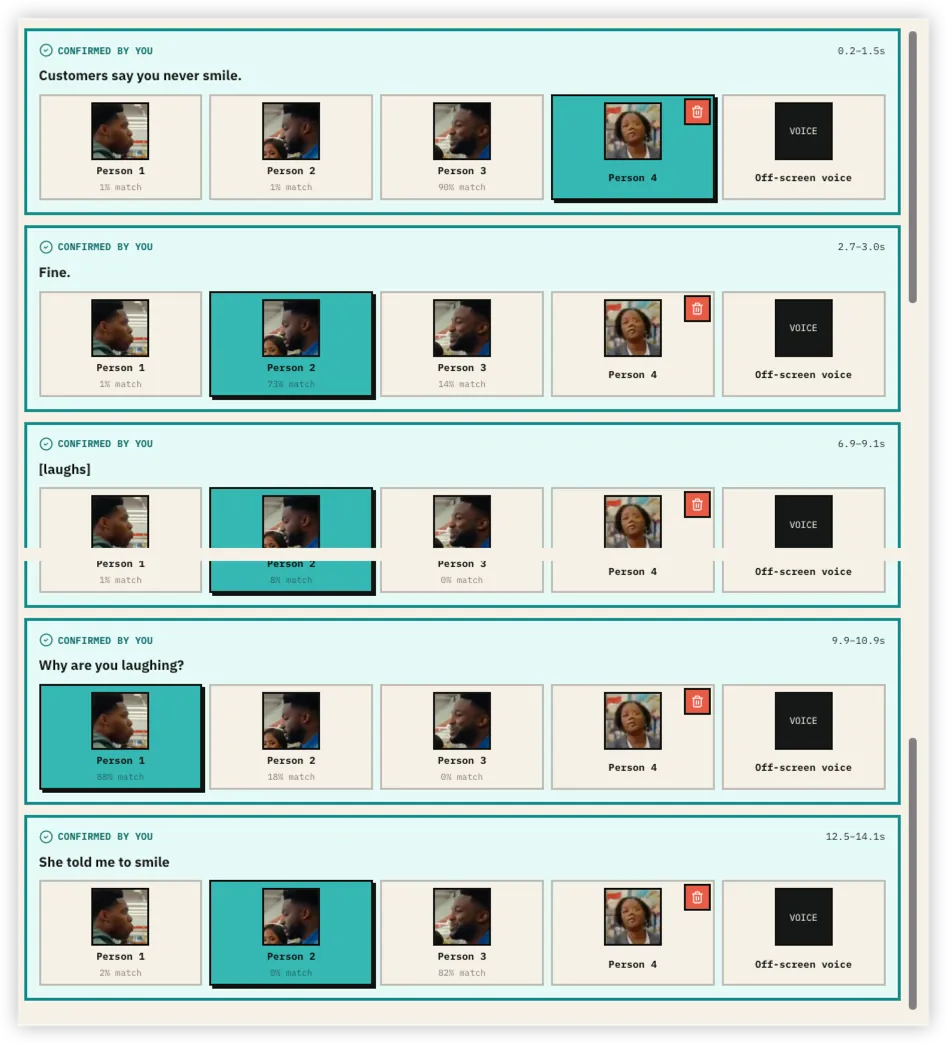
  3. Character matching screen in a custom video dubbing game
    03Confirm the cast

    Match every voice in the video dubbing game

    Play the original video whenever you need context, then choose who says each line. The video dubbing game preselects clear matches and highlights uncertain lines. Select another face or Off-screen voice when the suggested speaker is wrong.

    If someone is missing, pause on a clear frame and choose Add Missing Person. Draw a box around the character with a mouse, or tap the character on a phone or tablet. The new person becomes available throughout the video dubbing game. You can also delete a duplicate or incorrect face.

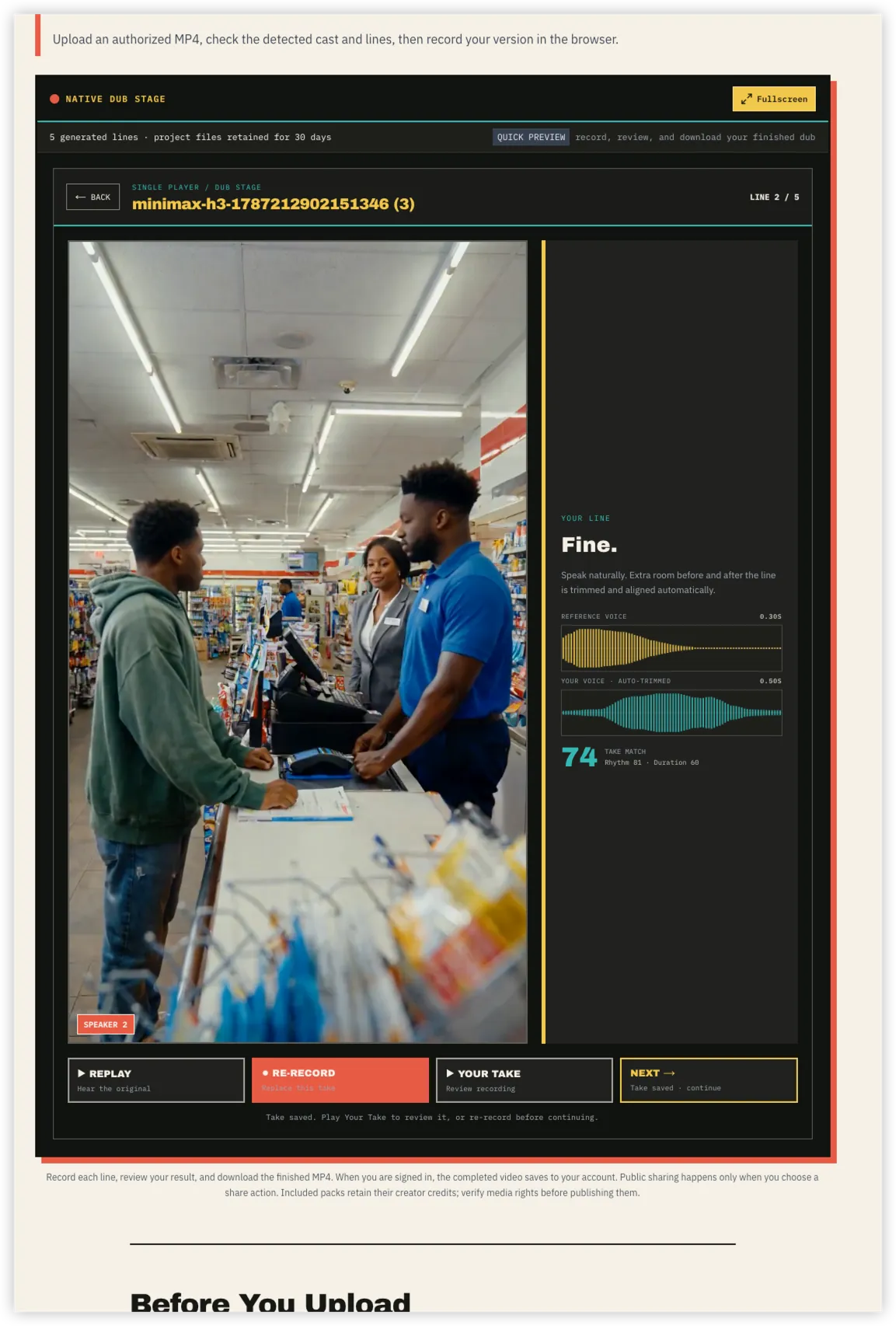
  4. Line recording screen for a completed video dubbing game project
    04Perform the scene

    Record and finish your video dubbing game

    Listen to the original line, record your take, and review it before moving forward. The video dubbing game gives you room before and after the sentence, then trims and aligns the useful voice so you do not have to speak against an uncomfortable countdown.

    Use Replay to hear the reference, Your Take to check your recording, and Re-record whenever a line needs another attempt. After every line is complete, the video dubbing game combines your performance with the prepared scene and makes the finished MP4 available without a watermark.

One project, more performances

A Video Dubbing Game You Can Reopen

Preparing the scene is different from recording a performance. The first part builds the reusable video dubbing game: the lines, timing, cast choices, and clean background track. The second part is your performance, and that can change every time you reopen the project.

This means one video dubbing game can support a serious take, a funny version, a different character choice, or another recording session with a friend. Fix only the line you want to improve. You do not need to prepare the same scene or pay the project charge again simply because you want another take.

Each completed video dubbing game keeps the original scene while replacing the selected dialogue with your recorded lines. Review the finished sequence, download the source-quality MP4 without a watermark, and keep your own copy of the result.
Start your video dubbing game

Questions before you start

Video Dubbing Game FAQ

These answers cover the decisions people usually make before starting a video dubbing game, while a saved project is being prepared, and when they return to record another performance.

01

How much does one uploaded video project cost?

Creating a video dubbing game from an uploaded MP4 costs 30 credits. That project charge includes preparation and the ordinary source-quality, watermark-free result. Reopening the same saved video dubbing game to record another version does not charge the preparation fee again.

02

When can I safely leave the page?

Stay on the page while Step 1 is uploading the file. Once Step 2 begins, the video dubbing game is saved and processing can continue without the upload page remaining open. Return through Dashboard > Dub Projects to see its status or continue the next available step.

03

What if the wrong character is detected?

You control the final cast of the video dubbing game. Choose another suggested person, delete an incorrect or duplicate face, add a missing character by drawing a box around them, or assign the line to Off-screen voice. Play the original video again whenever the scene is unclear.

04

Can a video dubbing game use animation or several speakers?

Yes. Animation, overlapping dialogue, laughter, profiles, and off-screen speech can make automatic character matching less certain, so review every highlighted line. The video dubbing game keeps the correction controls available before recording begins instead of forcing you to accept an uncertain match.

05

Can I record the same project more than once?

Yes. A saved video dubbing game is reusable during its retention period. Open it from Dub Projects, choose a different voice or improve individual takes, and export another ordinary result without paying the project preparation charge again.

06

Will my finished video have a watermark?

No. The ordinary result included with your uploaded video dubbing game can be downloaded without a watermark in the source video quality. Download the completed MP4 promptly, and reopen the saved project later if you want to record a different performance.